Turning numbers red when they are negative is not very difficult in Excel. Here are several techniques.
Currency format turns negative numbers red
Among number formats present in Excel, only the monetary format offers the option of putting negative values in red.
From the Ribbon (Home tab), if you choose the currency format, negative numbers are displayed in the same color as positive numbers.
- Open the number customizations menu.
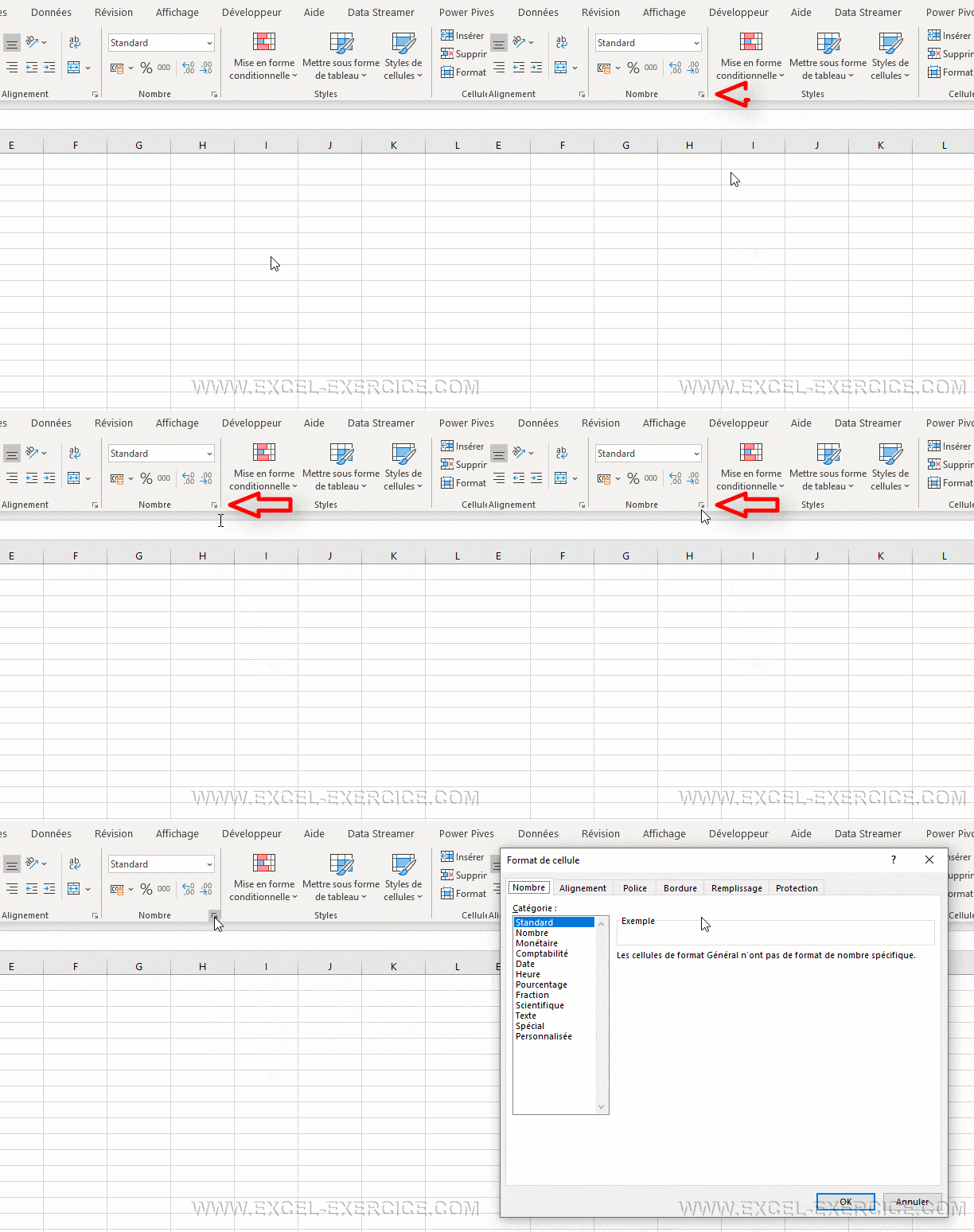
- In the Currency section, you can choose to display negative numbers in red.

Customize number format
For all other formats, there are two different techniques that allow you to display negative numbers in red.
When you open the menu Cell Format > Number > Category > Custom, you see that there already exist certain formats with the indication [Red]

Detail of the number format code
Creating a custom code for a number follows the following rule.
Positive number;Negative number;Zero;Text
To put a negative number in red, it is the second part of the code that will interest us.
If, for example, you want to put negative percentages in red, you will simply write:
0%;[Red]-0%
Or if you want to keep decimals:
0,00%;[Red]-0,00%
- Don't forget the sign -
- If you forget it, the negative number will appear in red but without the negative sign. ????????????

The colors offered
Here is the list of 8 colors that you can add to your custom number formats in Excel
- Noir
- White
- Red
- Vert
- Blue
- Saffron yellow
- Magenta
- Cyan
Conditional formatting
The other technique that allows you to put a negative number in red is to create a rule of conditional formatting.

Open the Conditional Formatting > New Rule menu
- Select the rule Apply formatting only to cells that contain.
- Then choose the option Cell value.
- With the option Lower than.
- Indicate the value from which the rule will apply (here 0).
- Finally, click the button Format.

Choose the type of format you want when the rule will be detected.

With the following result in the spreadsheet, the negative numbers are red and bold

Which method to choose?
Using conditional formatting is the preferred method because it offers a much greater range of format customization (bold, italic, cell background color, etc.)
You will find additional information on create a custom number format on the Microsoft site.


04/10/2022 @ 08:02 p.m.
Hello, thank you very much for this really very simple and well explained information.
I find it precise and very well illustrated.
Thank you
20/08/2022 @ 10:28 p.m.
GREAT TRAINING FOR ME AS A BEGINNER
13/02/2021 @ 20:29 p.m.
It's not clear enough for everyone I honestly think
If you want positive numbers in green and negative numbers in red enter: [Green]Standard;[Red]Standard
14/02/2021 @ 10:40 p.m.
There is no “good” or “bad” solution. The problem with this method is that the choice of colors is very limited.
06/11/2020 @ 13:32 p.m.
Thank you for the tremendous support. It’s a very practical and very clear method.