How to do a left VLOOKUP?

Last updated on 06/08/2025
Reading time : 3 minutes

How to do a VLOOKUP to the left of the search column? Two solutions are possible, but not with VLOOKUP.

  1. VLOOKUP Limitation
    The VLOOKUP function can only retrieve a value to the right of the lookup column. There is no parameter to read to the left.
  2. Modern solution: XLOOKUP
    To overcome this limitation, Microsoft created the XLOOKUP function. It allows you to search in any column, left or right. Its use is more flexible and its syntax simpler.
  3. Classic alternative: INDEX + EQUIV
    Before XLOOKUP, the only way to read left was to combine INDEX and MATCH. This combination remains effective but can seem complex to master for beginners.

VLOOKUP only reads to the right ⛔

The VLOOKUP function allows you to search for data in an array by returning data always located to the right of the search column. But there are 2 other search functions that allow you to get around this problem.

We will see how to retrieve the country name (column A) using the country code (column B)

How to do a left VLOOKUP

Solution with SEARCHEX

La LOOKUP function is one of the newest functions developed by Microsoft in Excel 365. It improves the shortcomings observed with the VLOOKUP function, like search on the left.

  1. Start by writing the name of the XLOOKUP function
  2. Then indicate the cell containing the element to search for
  3. Select only the column where is the item to search for (here, column B)
  4. Finally, select the column to return (here, column A)

The formula in this example is:

=RECHERCHEX(H2;B2:B233;A2:A233)
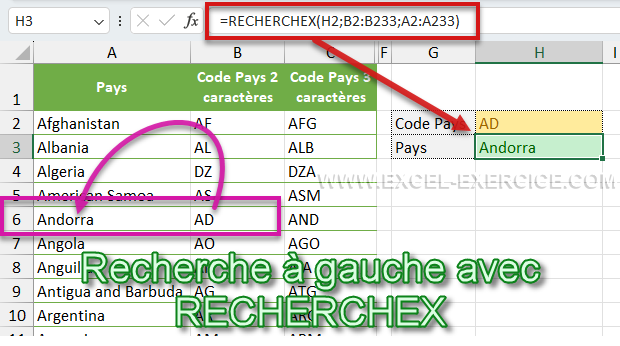
Search left with XSEARCH
  • With XLOOKUP, there are only 2 columns to select, the search column and the column to return

Solution with INDEX and EQUIV

If you don't work with Excel 365 or Excel Online, here's how to search left.

  1. We will start by writing the INDEX function.
  2. As a first parameter, we will select only the country names column, the information we are looking for =INDEX($A$2:$A$233
  3. Then, for the second argument, we will utiliser the MATCH function. This function returns the position of an element in a list.
  4. As we seek the AD code position and our list, we will write =EQUIV($H$2;$B$2:$B$233;0)
  5. The 0 at the end indicates that we are doing an exact search.
  6. Finally, we add this EQUIV formula as the second argument of the INDEX function

=INDEX($A$2:$A$233;EQUIV($H$2;$B$2:$B$233;0))

Search left with INDEX and EQUIV

Related Articles

Explanatory video

The following video shows you the technique and you have the explanations afterwards

4 Comments

  1. Corentin
    13/06/2019 @ 15:42 p.m.

    Thanks thanks thanks ! This formula is awesome! Goodbye searchesv, in the end no need to use them!

    Reply

  2. PJ
    11/03/2015 @ 17:55 p.m.

    Hello,

    Thank you for these fairly clear explanations.

    However, I would like to have one clarification: should the search range of INDEX be different from that of EQUIV? I tried with the same range (constraints of my table) and I got an error message #N/A.

    Thank you in advance.

    PJ

    Reply

    • Marie-Florence
      02/11/2021 @ 11:24 p.m.

      I had the same problem I feel like Index equiv doesn't work when the array and search range is the same.

      Reply

      • Frédéric LE GUEN
        02/11/2021 @ 11:27 p.m.

        And why don't you use SEARCHEX? It's much simpler

Leave comments

Your email address will not be published. Required fields are marked with *

This site uses Akismet to reduce unwanted. Learn more about how your feedback data is processed.

Microsoft MVP 2024

Newsletter

Once a month:
Tips and quizzes

    We won't spam you. You can unsubscribe at any time.

    How to do a left VLOOKUP?

    Reading time: 3 minutes
    Last updated on 06/08/2025

    How to do a VLOOKUP to the left of the search column? Two solutions are possible, but not with VLOOKUP.

    1. VLOOKUP Limitation
      The VLOOKUP function can only retrieve a value to the right of the lookup column. There is no parameter to read to the left.
    2. Modern solution: XLOOKUP
      To overcome this limitation, Microsoft created the XLOOKUP function. It allows you to search in any column, left or right. Its use is more flexible and its syntax simpler.
    3. Classic alternative: INDEX + EQUIV
      Before XLOOKUP, the only way to read left was to combine INDEX and MATCH. This combination remains effective but can seem complex to master for beginners.

    VLOOKUP only reads to the right ⛔

    The VLOOKUP function allows you to search for data in an array by returning data always located to the right of the search column. But there are 2 other search functions that allow you to get around this problem.

    We will see how to retrieve the country name (column A) using the country code (column B)

    How to do a left VLOOKUP

    Solution with SEARCHEX

    La LOOKUP function is one of the newest functions developed by Microsoft in Excel 365. It improves the shortcomings observed with the VLOOKUP function, like search on the left.

    1. Start by writing the name of the XLOOKUP function
    2. Then indicate the cell containing the element to search for
    3. Select only the column where is the item to search for (here, column B)
    4. Finally, select the column to return (here, column A)

    The formula in this example is:

    =RECHERCHEX(H2;B2:B233;A2:A233)

    Search left with XSEARCH
    • With XLOOKUP, there are only 2 columns to select, the search column and the column to return

    Solution with INDEX and EQUIV

    If you don't work with Excel 365 or Excel Online, here's how to search left.

    1. We will start by writing the INDEX function.
    2. As a first parameter, we will select only the country names column, the information we are looking for =INDEX($A$2:$A$233
    3. Then, for the second argument, we will utiliser the MATCH function. This function returns the position of an element in a list.
    4. As we seek the AD code position and our list, we will write =EQUIV($H$2;$B$2:$B$233;0)
    5. The 0 at the end indicates that we are doing an exact search.
    6. Finally, we add this EQUIV formula as the second argument of the INDEX function

    =INDEX($A$2:$A$233;EQUIV($H$2;$B$2:$B$233;0))

    Search left with INDEX and EQUIV

    Related Articles

    Explanatory video

    The following video shows you the technique and you have the explanations afterwards

    Newsletter

    Once a month:
    Tips and quizzes

      We won't spam you. You can unsubscribe at any time.

      4 Comments

      1. Corentin
        13/06/2019 @ 15:42 p.m.

        Thanks thanks thanks ! This formula is awesome! Goodbye searchesv, in the end no need to use them!

        Reply

      2. PJ
        11/03/2015 @ 17:55 p.m.

        Hello,

        Thank you for these fairly clear explanations.

        However, I would like to have one clarification: should the search range of INDEX be different from that of EQUIV? I tried with the same range (constraints of my table) and I got an error message #N/A.

        Thank you in advance.

        PJ

        Reply

        • Marie-Florence
          02/11/2021 @ 11:24 p.m.

          I had the same problem I feel like Index equiv doesn't work when the array and search range is the same.

          Reply

          • Frédéric LE GUEN
            02/11/2021 @ 11:27 p.m.

            And why don't you use SEARCHEX? It's much simpler

      Leave comments

      Your email address will not be published. Required fields are marked with *

      This site uses Akismet to reduce unwanted. Learn more about how your feedback data is processed.