Bucketing or TreeMap chart in Excel

Last updated on 07/10/2025
Reading time : 3 minutes

Starting with Excel 2016, Microsoft added the TreeMap chart to its range of chart types. This article will show you how to create one and, more importantly, how to interpret it.

Hierarchical chart

The compartmentalization chart is part of the family of hierarchical graphs, like the sunlight. It allows you to see at a glance the largest elements compared to the entire data.

Compartmental chart or TreeMap

Creating a treemap in Excel

Creating a compartmentalization chart is not very complicated to do. What matters is the presentation of the data in your table.
Let's take the example of extracting the list of all files contained in a directory and its subdirectories, as described in this article.

List of directories and subdirectories to create a compartmentalization graph

As the picture shows you, each hierarchical level is distinctly viewable in different columns. In last column, we have the size of each file. These values ​​will define the size of each rectangle in the chart.

  1. Select one of the cells in your data table.
  2. Go to the menu Insert > Hierarchy Chart > Bucketing
Graphical compartmentation menu

Immediately, the following chart appears in your spreadsheet.
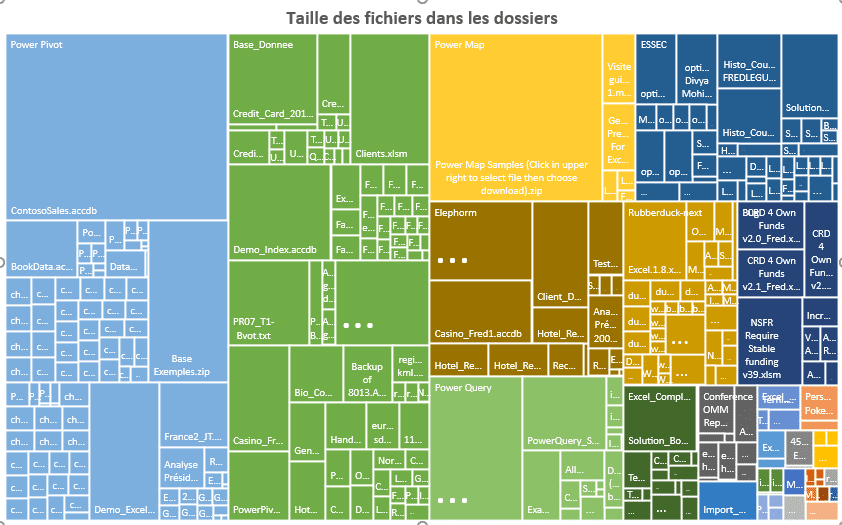
Compartmentalization or Treemap type graph

How to read this type of graph?

The graph may seem confusing but you should not look at it as a whole.

  • First, the colors correspond to the first hierarchical level of your data.
  • The name of the levels is written in the top left corner of the first squares: Power Pivot, Database, Power Map, ...
  • The surface area of ​​the squares or rectangles corresponds to the size of the files in the directories, in our example. So, the largest area represents the largest file in the directories

So in our example, we immediately see that the ContosoSales.accdb files in the directory PowerPivot and Power Map samples in the folder Power Map are the largest.

So with a Compartmentalization graph, you instantly identify the elements that occupy a larger proportion in your entire sample of values. Small areas have no interest in the analysis.

Hierarchical depth

The area of ​​squares or rectangles do not show at what hierarchical level the important elements are located. A colored block aggregates data from all hierarchical levels. To visualize the depth of a hierarchy, you must use a sunburst graphic.

Other charts to know

2 Comments

  1. Claire MARQUET
    06/05/2021 @ 17:31 p.m.

    thank you for this article, can we create this compartmentalization graph in VBA

    Reply

    • Frédéric LE GUEN
      06/05/2021 @ 17:59 p.m.

      No idea. But why in VBA? To make the graph dynamic?

      Reply

Leave comments

Your email address will not be published. Required fields are marked with *

This site uses Akismet to reduce unwanted. Learn more about how your feedback data is processed.

Microsoft MVP 2024

Newsletter

Once a month:
Tips and quizzes

    We won't spam you. You can unsubscribe at any time.

    Bucketing or TreeMap chart in Excel

    Reading time: 3 minutes
    Last updated on 07/10/2025

    Starting with Excel 2016, Microsoft added the TreeMap chart to its range of chart types. This article will show you how to create one and, more importantly, how to interpret it.

    Hierarchical chart

    The compartmentalization chart is part of the family of hierarchical graphs, like the sunlight. It allows you to see at a glance the largest elements compared to the entire data.

    Compartmental chart or TreeMap

    Creating a treemap in Excel

    Creating a compartmentalization chart is not very complicated to do. What matters is the presentation of the data in your table.
    Let's take the example of extracting the list of all files contained in a directory and its subdirectories, as described in this article.

    List of directories and subdirectories to create a compartmentalization graph

    As the picture shows you, each hierarchical level is distinctly viewable in different columns. In last column, we have the size of each file. These values ​​will define the size of each rectangle in the chart.

    1. Select one of the cells in your data table.
    2. Go to the menu Insert > Hierarchy Chart > Bucketing
    Graphical compartmentation menu

    Immediately, the following chart appears in your spreadsheet.

    Compartmentalization or Treemap type graph

    How to read this type of graph?

    The graph may seem confusing but you should not look at it as a whole.

    • First, the colors correspond to the first hierarchical level of your data.
    • The name of the levels is written in the top left corner of the first squares: Power Pivot, Database, Power Map, ...
    • The surface area of ​​the squares or rectangles corresponds to the size of the files in the directories, in our example. So, the largest area represents the largest file in the directories

    So in our example, we immediately see that the ContosoSales.accdb files in the directory PowerPivot and Power Map samples in the folder Power Map are the largest.

    So with a Compartmentalization graph, you instantly identify the elements that occupy a larger proportion in your entire sample of values. Small areas have no interest in the analysis.

    Hierarchical depth

    The area of ​​squares or rectangles do not show at what hierarchical level the important elements are located. A colored block aggregates data from all hierarchical levels. To visualize the depth of a hierarchy, you must use a sunburst graphic.

    Other charts to know

    Newsletter

    Once a month:
    Tips and quizzes

      We won't spam you. You can unsubscribe at any time.

      2 Comments

      1. Claire MARQUET
        06/05/2021 @ 17:31 p.m.

        thank you for this article, can we create this compartmentalization graph in VBA

        Reply

        • Frédéric LE GUEN
          06/05/2021 @ 17:59 p.m.

          No idea. But why in VBA? To make the graph dynamic?

          Reply

      Leave comments

      Your email address will not be published. Required fields are marked with *

      This site uses Akismet to reduce unwanted. Learn more about how your feedback data is processed.