How to remove VAT from a tax-inclusive price in Excel? There are two formulas to know.
- Net price calculationThis is the calculation that allows you to move from the price including tax to the price excluding tax by removing the VAT.
- Calculation of the VAT amountThe other formula allows you to deduct only the VAT value from an amount including tax, without calculating the price excluding tax.
Calculate the net price of the product
We saw in a previous article how calculate a price including tax depending on VAT. Here, we are going to do the opposite, i.e. how to remove VAT from a price excluding tax (excluding tax).
The net price of a good, or even excluding tax, is obtained by dividing the price including tax by the VAT + 1.
=B4/(1+$C$1)
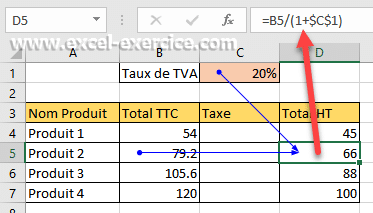
With this formula, we removed the VAT from the initial inclusive amount.
Calculate tax alone
Now if you just want to calculate the tax you paid, of course you can differentiate between the price including tax and the price excluding tax. But you can also use the previous formula by adding VAT in the numerator.
=(B4*$C$1)/(1+$C$1)
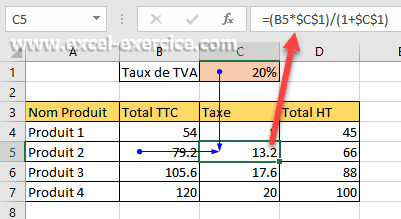
Bringing these two formulas into your Excel workbooks will considerably simplify their construction. It is never desirable to do lots of intermediate calculations. Reading the formulas is less simple and above all the risk of error is greater.


